By LyfPDF Editorial Team · Published
1. Choose one of eight worksheet modes
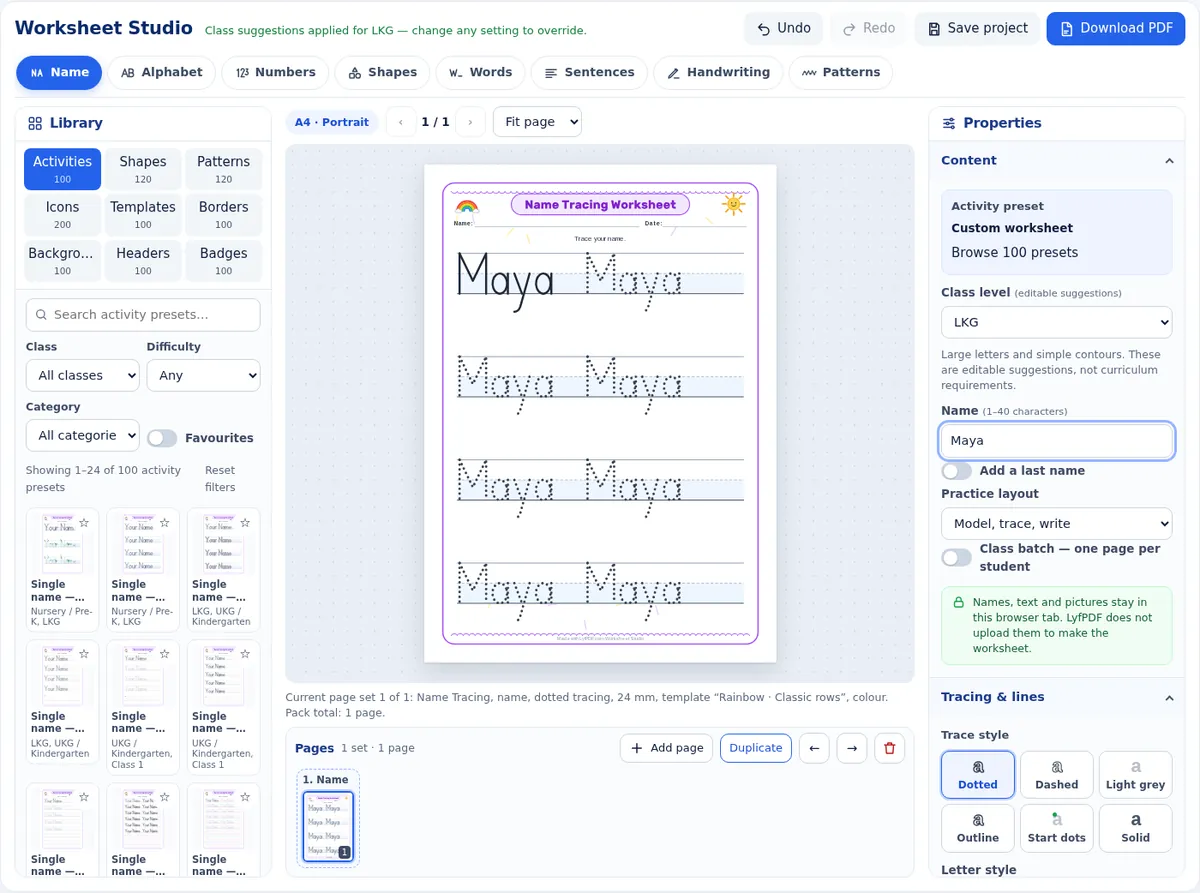
The tabs across the top of the studio switch between the eight modes. Each mode keeps its own settings, so you can move to Numbers and back to Name without losing what you typed.
- Name tracing worksheet generator
- Alphabet tracing worksheet generator
- Number tracing worksheet generator
- Shape tracing worksheet generator
- Word tracing worksheet generator
- Sentence tracing worksheet generator
- Handwriting practice worksheet generator
- Pattern tracing worksheet generator
2. Pick a class level and an activity preset
Choose a class level — Nursery/Pre-K, LKG, UKG/Kindergarten or Class 1 to 5 — in Content. The studio suggests a size, spacing, trace style and number of independent rows. Every setting stays editable; the levels are practice suggestions, not official curriculum approval.
The Activities tab in the library lists 100 presets for the current mode: ten exercise structures, each with ten progressions. Filter by class or difficulty, search, and click a preset to apply it. Your name, title and pictures stay.
3. Enter names or text, or select shapes and patterns
Type the name, letters, number range, words, sentences or paragraph in Content. For a class, switch on Class batch and paste up to 200 names; the studio shows the page count first.
For shapes and patterns, open the Shapes or Patterns tab, select items and press Add selected. “Select visible” only selects the items shown on the current page of results, so you never add hundreds by accident.
4. Adjust tracing, model and free-practice areas
In Tracing & lines choose dotted, dashed, light grey, outline, start-dot or solid tracing, the guide lines, the size and the row spacing. Progression keeps a solid model first, tracing next and independent rows last; Fade moves from dark to light to dots only.
Click anything on the page to select it. A shape cell can be replaced (this cell or all matching), a row moved or removed, and badges, icons and text boxes can be dragged, resized, rotated, aligned, grouped or locked. Arrow keys move a selected object and Escape clears the selection.
5. Choose a print-safe template
Templates combine a style family with one of five page compositions: classic rows, a Look · Trace · Draw table, practice cards, a side panel or a big example. Changing the template never changes your text. Fine-tune the border, background, header design and heading font in Design, or apply the design to all pages.
Backgrounds are kept away from the tracing rows. For home printers, choose B&W low-ink: backgrounds are removed and decorations become thin outlines.
6. Review every page
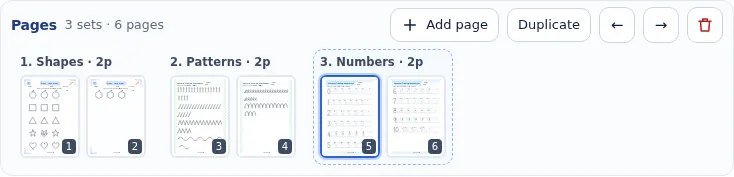
The Pages strip shows every page. Add page creates another page set that can use a different mode, so one pack can hold, for example, name tracing, a shape page and a number page. Duplicate, reorder and delete page sets from the same bar.
7. Export or print at actual size
Download a vector PDF, or PNG/JPG images at 150 or 300 dpi — several image pages download as one ZIP. Choose all pages, the current page or a list such as 1-3, 5. Long class packs show progress with a Cancel button and can be split into a ZIP of smaller PDFs.
When printing, choose the same paper size and Actual size / 100% so guide lines keep their real height. Save project downloads a file you can reopen later; it can contain names, text and pictures, so store it with care.
A short example
A kindergarten teacher wants name practice plus shapes for a class of 24. She pastes the names with Class batch on, picks UKG/Kindergarten and the “Letter boxes” preset, then adds a second page set in Shapes with the Look · Trace · Draw table. The Pages strip shows 25 pages; she downloads one PDF and prints it at 100%.
Questions
Is the Worksheet Generator free?
Yes. Create, download and print worksheets without an account. A small “Made with LyfPDF.com” line is printed at the bottom of each page.
Are names uploaded?
No. The worksheet is created in your browser; names, text and pictures are not uploaded, put in the web address or sent to analytics. Autosave is optional and off by default.
Can I use cursive?
Print letters and pre-cursive letters with small exit strokes are available. Pre-cursive letters are not joined cursive.
Which paper sizes are supported?
A4, US Letter and custom sizes from 90 to 600 mm, in portrait or landscape.